First-Run Walkthrough
A step-by-step guide to the Blaze onboarding experience.
When you launch Blaze for the first time, you are guided through a high-fidelity onboarding process designed to configure your environment perfectly. This walkthrough details each of the seven steps you'll encounter.
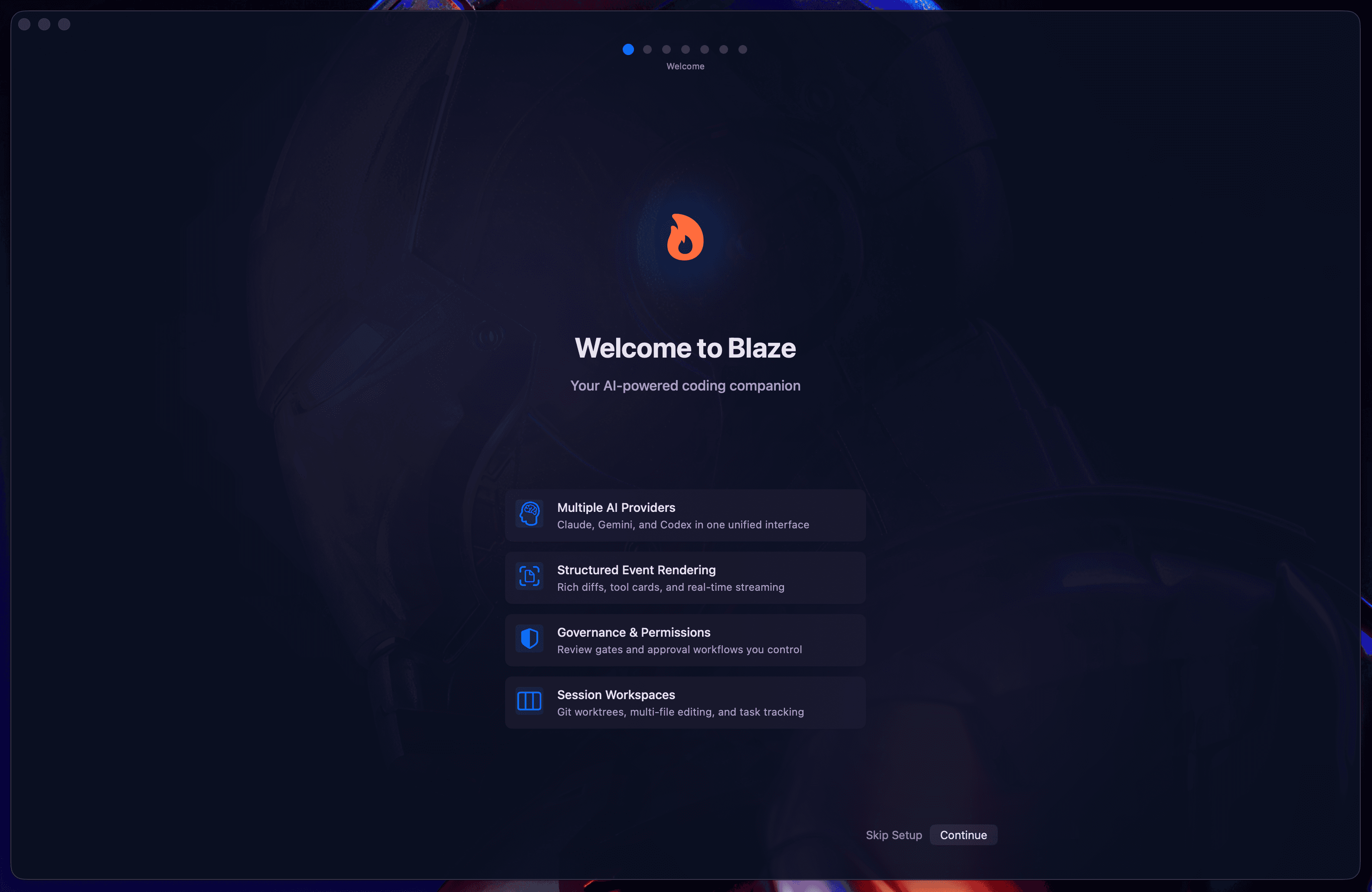
1. Welcome to Blaze
The journey begins with a cinematic introduction to the cockpit. This screen defines the core mission: eliminating terminal fatigue and introducing the native control plane for agentic coding.
2. Personalizing Your Profile
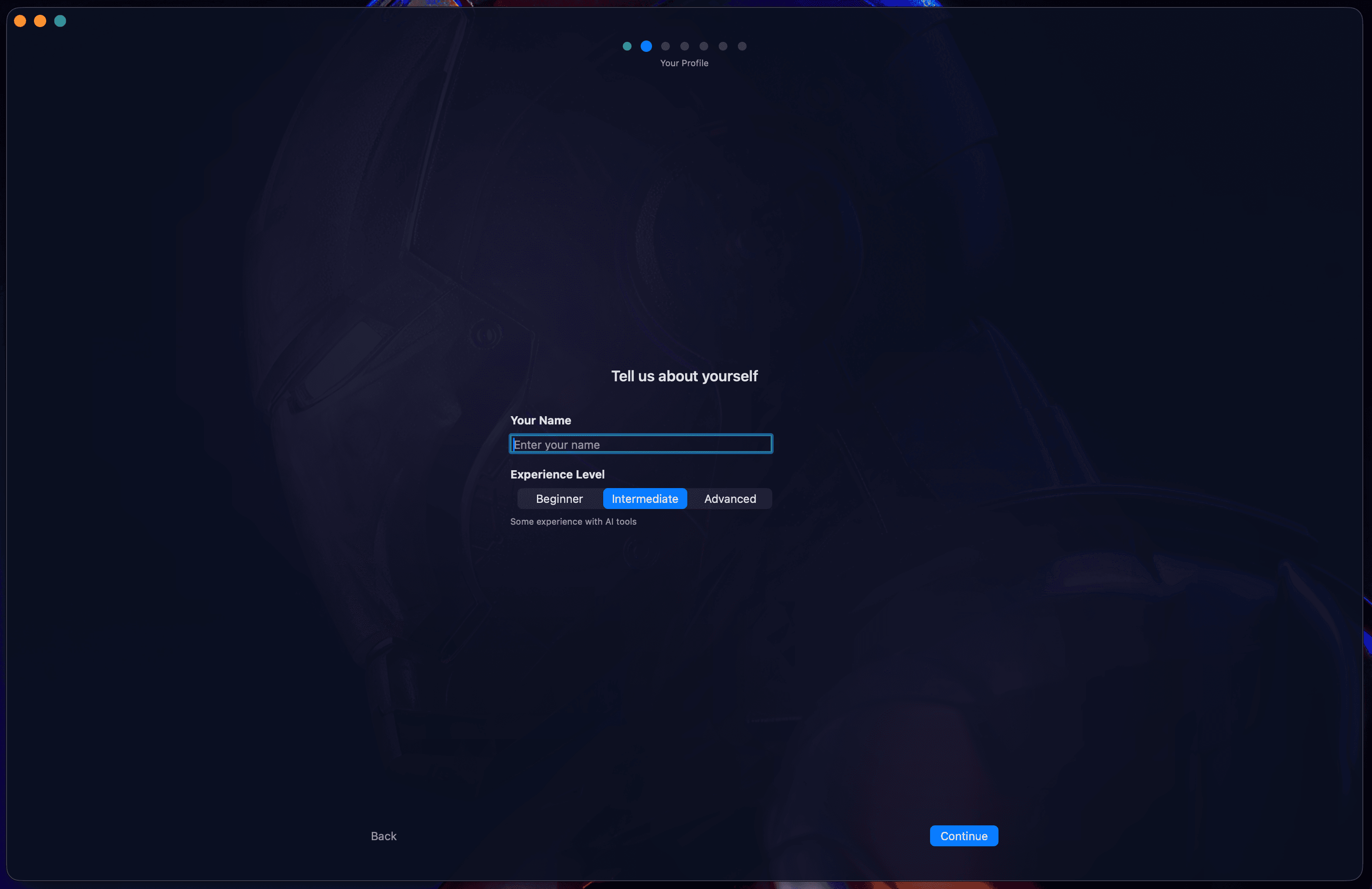
Blaze isn't just a tool; it's your personal coding companion. In the second step, you can enter your name and optional email. This allows the app to personalize your experience and greet you by name on subsequent launches.
3. Intelligent CLI Detection
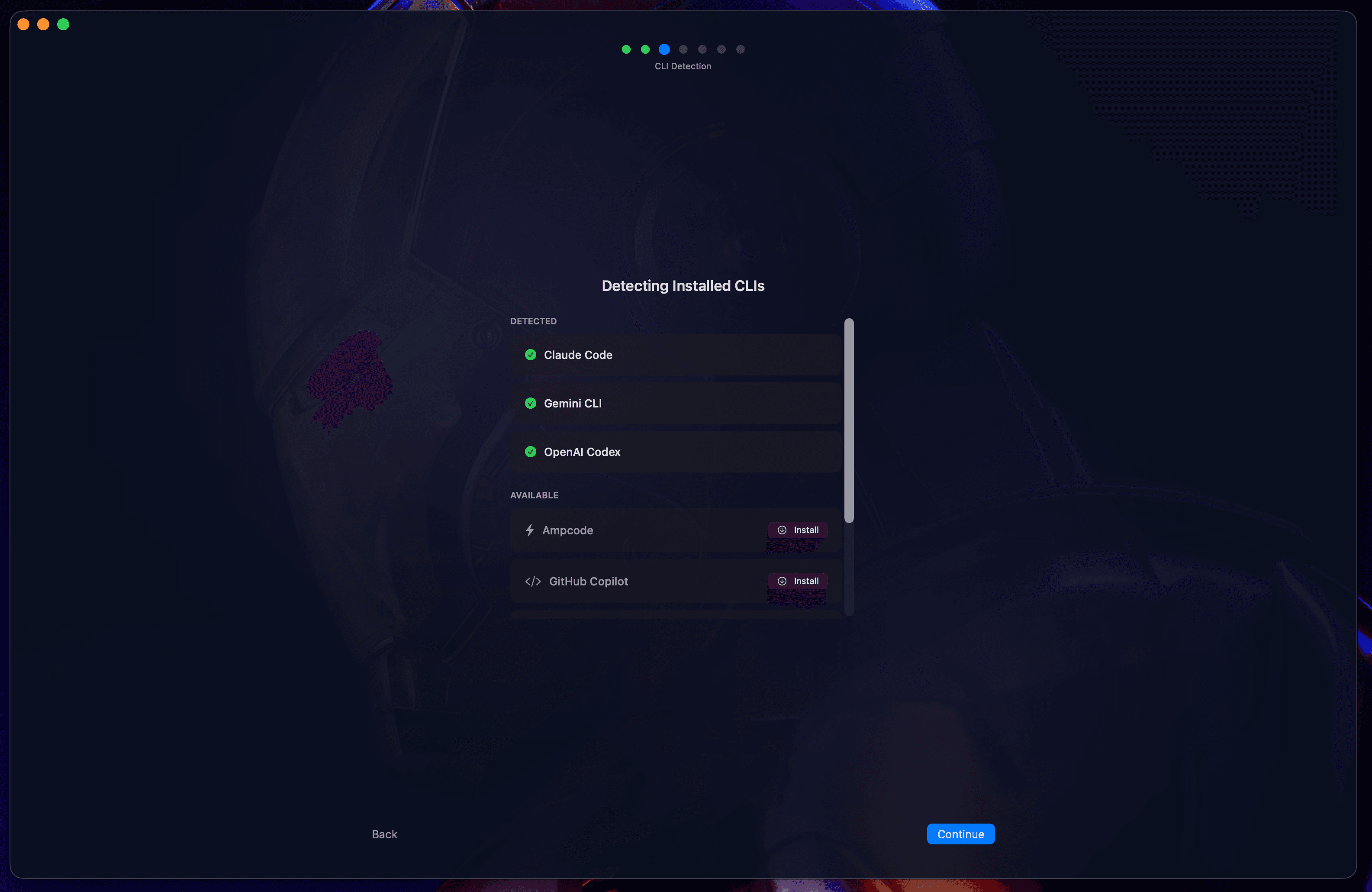
This is where the magic starts. Blaze scans your system for installed AI CLI tools like Claude Code, Gemini CLI, and Aider.
One-Click Installation
If Blaze detects missing dependencies (like Node.js or Python), it offers a one-click installation flow via Homebrew, NPM, or Pip. You can install all missing tools at once or select them individually.
4. Skills Recommendations
Skills are pre-configured prompts and workflows that enhance your agents. Blaze fetches a curated list from the remote registry, filtered specifically for the CLIs you have installed.
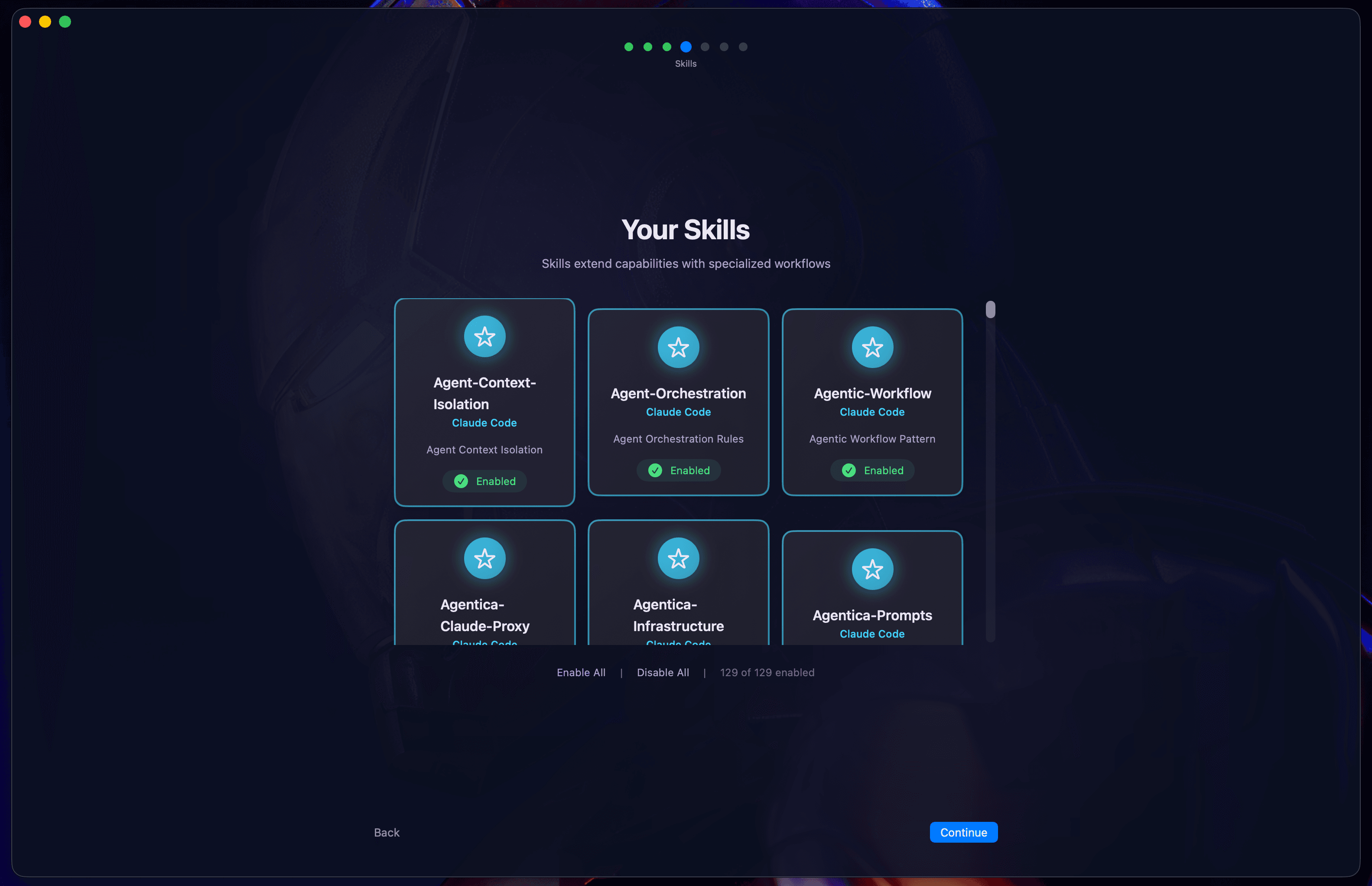
- Search & Filter: Find skills for debugging, testing, or documentation.
- Popularity Scores: See what the community is using most.
5. Plugin Extensions
Plugins expand the capabilities of your CLI engines. This screen groups recommendations by provider, showing tools like Gastown or Braintrust for Claude Code, and official extension catalogs for Gemini.

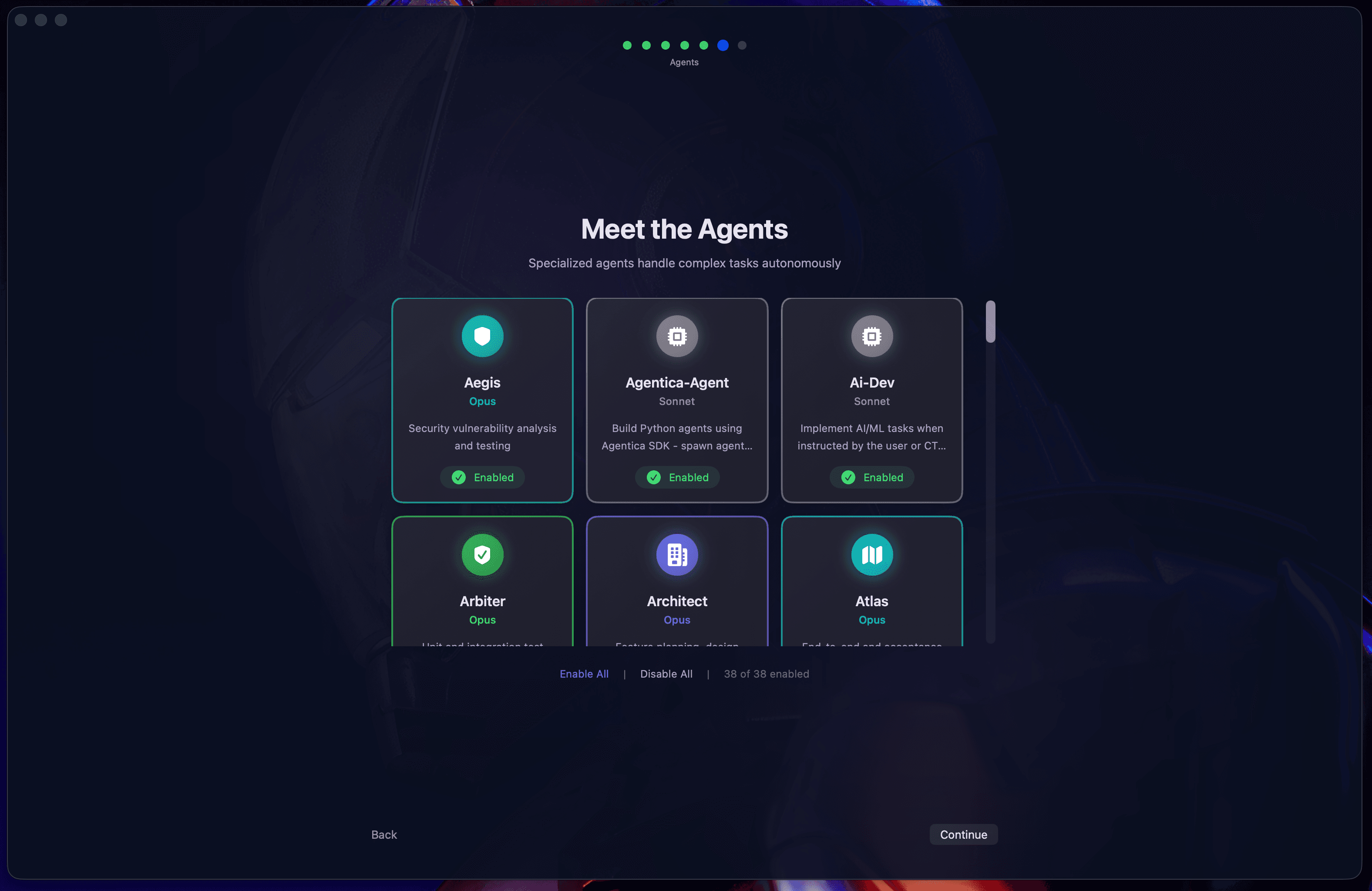
6. Agent Personas
Choose your workforce. This step allows you to select from pre-configured agent personalities organized by use case:
- Planning Agents for architecture.
- Debugging Agents for deep logic fixes.
- Security Agents for sandbox enforcement.
7. Setup Complete
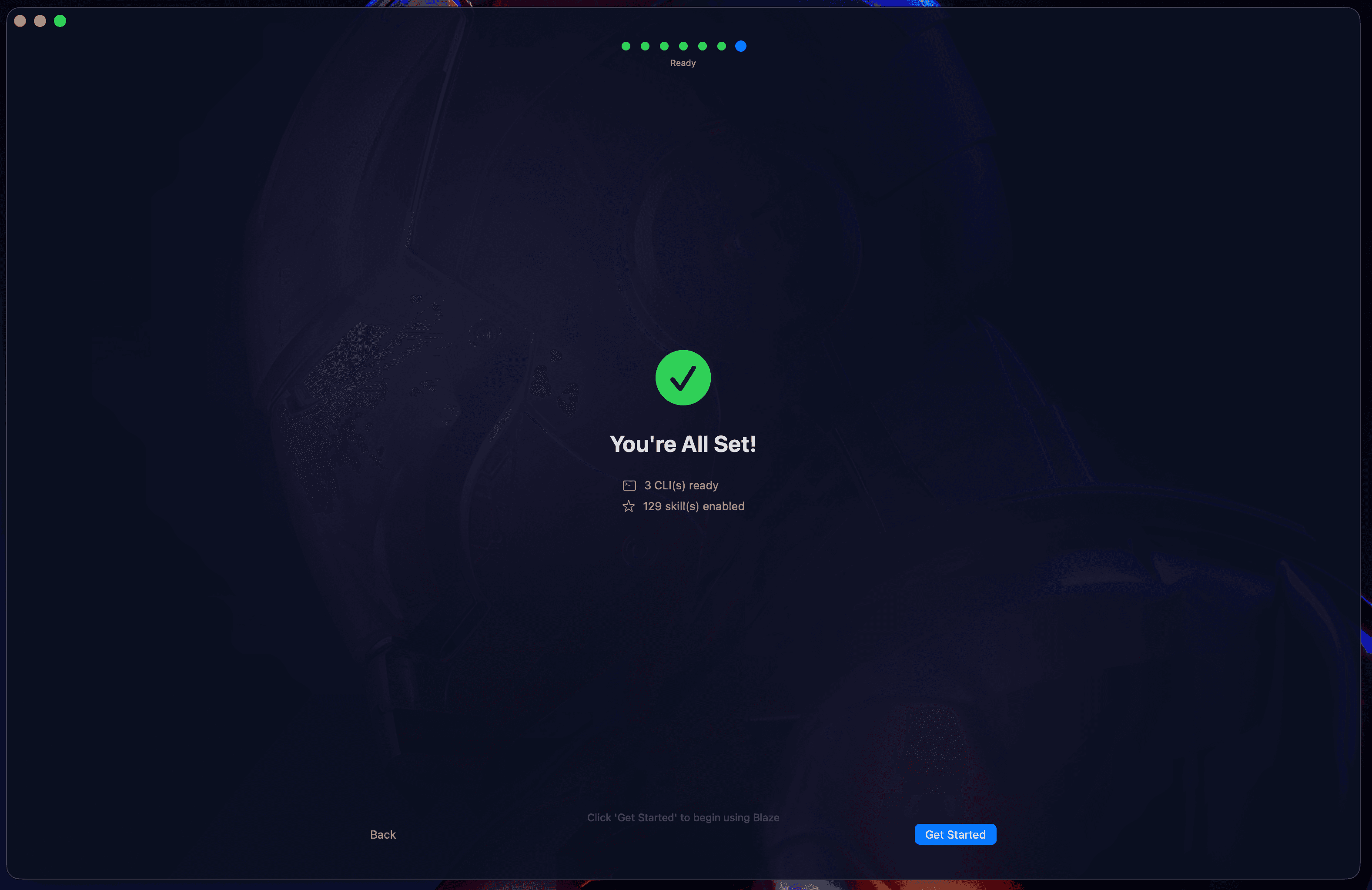
The final step summarizes everything you've configured. Blaze persists your settings, completes any background installations, and prepares the cockpit for take-off.
What's Next?
Once finished, you can dive straight into your first session or launch the Interactive Tutorial to learn how to navigate the 3-pane layout.
Ready to start? Move on to Provider Authentication.